Google Search Console: The Complete Guide for 2026
Search Console is the only official communication channel between your website and Google. Here is how to add your site, read the Performance report with its new 2025–2026 features, and fix indexing problems.


No SEO campaign starts without adding the site to Google Search Console.
It is your ticket to organic traffic and the only official way to tell the search engine: “This is my site — include it in the results and show me what is happening to it.”
The old name, Google Webmaster Tools, was retired back in 2015, but the query refuses to die — so let’s clear this up right away: today the tool is called Google Search Console (GSC), and over the past two years it has changed more than in the previous five.
I rewrote this guide from scratch: removed everything Google has managed to bury and added what appeared in 2024–2026 — hourly data, brand filters, annotations, AI-assisted report configuration, and BigQuery export.
In short: Google Search Console is Google’s free service for site owners. It shows which queries your site is found for, which pages are indexed, which errors hold back your rankings, and lets you submit sitemaps and request reindexing. To get started, add a property at search.google.com/search-console and verify ownership — via a DNS record (Domain property) or an HTML tag/file (URL-prefix property).
What Google Search Console Is and Why You Need It
Google Search Console is the control panel for your site’s visibility in Google Search. Unlike Google Analytics, which shows what users do on your site, GSC shows what happens before the click: impressions, positions, CTR, indexing status, and technical issues.
What you get after connecting:
- query statistics: impressions, clicks, CTR, and average position for every query and every page;
- an indexing report: which pages are in the index, which are excluded and why;
- alerts about manual actions, security issues, and hacks;
- Core Web Vitals data — how real users experience your site’s speed;
- the URL Inspection tool and reindexing requests;
- reports on structured data and mobile usability;
- sitemap management and crawl settings.
Without GSC you are doing SEO blind. With it, you see the search results through Google’s eyes.
What Has Died Since 2018: Stop Looking for These Tools
If you have read older guides (including the early version of this article), some of the tools they mention no longer exist. Google has been methodically thinning out its zoo of services:
| Tool | Status | Replacement |
|---|---|---|
| Structured Data Testing Tool | Shut down | Rich Results Test + the Schema.org validator |
| Mobile-Friendly Test and the Mobile Usability report | Shut down (December 2023) | Lighthouse, URL Inspection in GSC |
| AMP reports and badges | Technology effectively wound down | Plain fast pages + Core Web Vitals |
| Test My Site (testmysite) | Shut down | PageSpeed Insights |
| Page Experience report | Discontinued as a standalone report | Core Web Vitals report |
| Disavow in the old interface | Moved | A separate page for the disavow tool |
The takeaway is simple: don’t waste time on tutorials older than 2024 — half the buttons they describe no longer exist.
How to Add a Site to Search Console
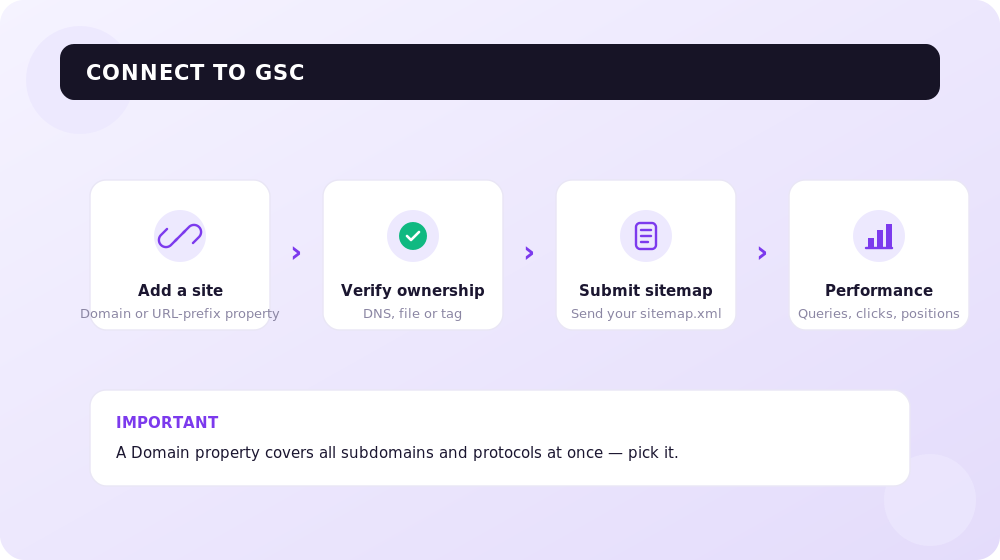
Go to search.google.com/search-console and click “Add property”. Google will offer two property types — and this is the first important choice.
Domain Property vs URL Prefix
| Criterion | Domain property | URL prefix |
|---|---|---|
| What it covers | The whole domain: all subdomains, HTTP and HTTPS, www and non-www | Only the exact address: https://site.com/ ≠ http://site.com/ ≠ https://www.site.com/ |
| Verification method | DNS record only (TXT or CNAME) | 5 methods: HTML file, meta tag, DNS, Google Analytics, Tag Manager |
| Best for | Domain owners with DNS access | Those who only have access to the code or hosting |
| Subdomains and mirrors | Counted automatically | Each variant is added as a separate property |
| Limitations | Can’t view a single folder | Can add a section (https://site.com/blog/) as a separate property |
My recommendation: make the Domain property your primary one — it insures you against the classic mistake where traffic “disappears” after a move to HTTPS or to a subdomain simply because nobody added the new variant to the console. Add URL-prefix properties on top when you need to track a specific section or language version.
Verification Methods
- DNS record (TXT) — the only method for a Domain property. Copy the TXT record from GSC, add it to your DNS settings at the registrar or DNS provider, and click “Verify”. Keep in mind: DNS propagation can take anywhere from minutes to a full day.
- HTML file — download the verification file and upload it to the root folder of your site (next to robots.txt). The file must open via a direct link.
- Meta tag — insert the tag from GSC into the
<head>section of your homepage. Convenient when you have access to the template but not the hosting. - Google Analytics — verification via an installed GA tag. Requires Editor-level access in the Analytics account.
- Google Tag Manager — via a GTM container with publish permissions.
Important: the verification method must stay in place permanently. Remove the meta tag during a redesign, and some time later you lose access to the property.

Access Levels: Which Permissions to Grant
When you bring in a contractor or employee, don’t hand everyone owner rights. GSC has three levels:
- Owner — full control: can add and remove users, change settings, delete the property. A verified owner has passed verification; a delegated owner has been added manually by a verified one.
- Full — sees all data and can perform most actions (request indexing, submit sitemaps) but cannot manage users.
- Restricted — view-only access to data. Ideal for analysts and reporting.
A security rule: Full access is enough for an SEO contractor. Every six months, open Settings → Users and permissions and remove anyone who no longer works on the project — in every second audit we find console access still granted to contractors from five years ago.
The Performance Report: An SEO’s Main Tool
The Performance report is the reason to open GSC every week in the first place. Four metrics:
- Clicks — how many times users clicked through to your site from the results.
- Impressions — how many times a link to your site appeared in search results.
- CTR — the ratio of clicks to impressions.
- Average position — the averaged ranking of your site for a query or page.
Data is grouped by queries, pages, countries, devices, and search appearance types. Compare periods (say, 28 days against the previous 28), filter branded vs non-branded queries — and you will see your real SEO dynamics without guesswork.
What’s New in the Report: 2024–2026
GSC was long criticized for being conservative, but over the past two years Google has been updating the console noticeably faster:
- The 24-hour view with hourly data (2024). A separate tab shows the last 24 hours broken down by hour, with almost no delay. Indispensable for gauging the effect of a fresh post or checking how the site is doing in the first hours after a release.
- Brand filter and annotations (November 2025). Google added a branded/non-branded query filter that recognizes brand variations and typos on its own, plus annotations — markers on the chart (“updated the category”, “Core Update rolled out”) visible to every user of the property. Previously you had to keep a separate spreadsheet for this.
- AI-assisted report configuration (December 2025). The console can now take a plain-language description of the data slice you need — Google assembles the matching report configuration with filters and comparisons itself. It lowers the entry barrier for business owners who have no time to learn the interface.
Regular Expressions: Filtering Queries Like a Pro
The “Custom (regex)” filter is the most underrated tool in the report. GSC uses RE2 syntax. Here are the regexes we use in our work all the time:
| Task | Regular expression |
|---|---|
| Question queries (content ideas for the blog and FAQ) | `^(how |
| Branded queries with every possible typo | `(?i)seoquick |
| Long-tail queries (70+ characters) | ^.{70,}$ |
| Single-word queries | ^\S+$ |
| Commercial intent | `(buy |
| Comparisons and alternatives | `\b(vs |
| Queries of 5+ words | ^(\S+\s+){4,}\S+ |
Pro tip: the question-word regex plus a “position between 5 and 20” filter gives you a ready-made list of topics where a content refresh is all it takes to reach the top — and Google’s AI answers.

The 1,000-Row Limit and How to Get Around It
The main pain of the GSC interface: any table shows you at most 1,000 rows. For a 50-page site that’s a non-issue. For an online store with thousands of product pages it’s a disaster: you analyze the tip of the iceberg while the entire long tail stays off-screen.
Ways around the limit:
- Search Analytics API. The official API returns up to 25,000 rows per request, and with pagination — practically the whole dataset. You can pull data into Google Sheets (free connectors), Looker Studio, or your own scripts. It is also the only way to get query + page pairs at scale.
- Bulk Export to BigQuery. Since 2023, GSC can export all performance data to BigQuery daily — with no row limits whatsoever. Set it up under Settings → Bulk data export. For large sites this is the only honest source of the full picture; from there, the data is easy to slice with SQL or plug into BI tools.
- Third-party tools built on the same API — from Sheets add-ons to SEO platforms.
SEOquick’s experience. For client projects we built our own internal tools on top of the GSC API: they automatically export complete query and page data, compare periods, and highlight pages losing traffic — before the dip even becomes visible in the console interface. We don’t use the standard 1,000-row limit in our work at all: decisions are made on complete data.
Remember: the GSC interface is for quick diagnostics. For systematic analytics, use the API or BigQuery.
Indexing: The Page Indexing Report
The second most important section of the console. The Page indexing report splits all URLs known to Google into indexed and not indexed — and names the reason for every excluded page.
Typical Statuses and How to Treat Them
| Status | What it means | What to do |
|---|---|---|
| Crawled — currently not indexed | Google saw the page but didn’t consider it worthy of the index | Strengthen the content and internal linking; check uniqueness. Often a sign of thin pages |
| Discovered — currently not indexed | Google knows the URL but hasn’t gotten around to crawling it | A crawl budget or slow server problem; cut junk URLs, speed up server response |
| Page with redirect | The URL returns a redirect | Normal during migrations. Check that redirects point to target pages, not chains |
| Alternate page with proper canonical tag | A duplicate correctly points to the canonical version | Nothing — the system is working as designed |
| Duplicate without user-selected canonical | Google picks the canonical version itself | Set canonicals explicitly, otherwise Google’s choice may not suit you |
| Excluded by ’noindex’ tag | The page carries an indexing ban | Check whether it’s intentional. A classic: a noindex left over from development |
| Not found (404) | The page has been deleted | If it has traffic or links — 301-redirect to a relevant page; if not, leave the 404 and remove internal links |
| Soft 404 | The page returns 200 but looks empty/broken | Either return an honest 404/410 or fill the page with real content |
| Blocked by robots.txt | Crawling is forbidden | Check robots.txt: did you block too much? Remember: robots.txt doesn’t remove pages from the index, it only forbids crawling |
Don’t panic over the mere fact of excluded pages: any living site has hundreds of them, and most statuses are routine filtering at work. Worry when important commercial pages land in the excluded list, or when the indexed-pages chart drops sharply.
URL Inspection and Indexing Requests
The URL Inspection tool (the search bar at the top of the console) shows the status of a specific page: whether it’s in the index, when it was crawled, which canonical version was chosen, how Google rendered the page. The “Request indexing” button puts the URL into a priority crawl queue.
Let me bust a popular myth right here: an indexing request doesn’t guarantee getting into the index, let alone affect rankings. If a page is “crawled — currently not indexed”, hitting the button ten times is pointless — treat the cause, i.e. the quality of the content.
Core Web Vitals in Search Console
The Core Web Vitals report shows how real Chrome users experience your site’s speed (CrUX data over 28 days). Three metrics:
- LCP (Largest Contentful Paint) — how fast the main content renders. The threshold is 2.5 seconds.
- INP (Interaction to Next Paint) — interface responsiveness. The threshold is 200 ms. INP officially replaced FID in March 2024, and that change matters: FID measured only the first delay, while INP measures responsiveness across the whole session, so many sites that were “green” on FID slid into the yellow zone on INP.
- CLS (Cumulative Layout Shift) — layout stability, no content “jumps”. The threshold is 0.1.
URLs in the report are grouped by page templates — fix the template, not an individual URL (for example, all product pages at once). To diagnose a specific page, use PageSpeed Insights: it shows both field data and lab data with recommendations.
Keep your priorities straight: Core Web Vitals is a ranking factor, but a weak one. Content and indexing first, milliseconds later.
Structured Data: What Google Supports in 2026
The Enhancements section in GSC shows reports for the structured data types found on your site: breadcrumbs, products, reviews, videos, job postings, and so on. But the list of supported types keeps shrinking, and you need to account for that:
- FAQ and HowTo are effectively wound down. Since 2023, Google shows FAQ rich snippets only for authoritative government and medical sites, and HowTo has disappeared from the results entirely. You can keep the markup (it helps machines understand content), but don’t expect CTR gains from it.
- January 2026: Google removed another batch of types from Search and from the documentation — including practice problems and a number of other rarely used formats; the corresponding reports are disappearing from Search Console as well.
What still works and produces rich snippets: Product (prices, availability, reviews), Review, Recipe, Event, JobPosting, VideoObject, Breadcrumb, Organization. Validate your markup with the Rich Results Test — the old Structured Data Testing Tool, as a reminder, is dead.
A practical 2026 note: correct Organization, Author, and Product markup helps not only snippets but also your citability in Google’s AI answers — it’s easier for the machine to extract and attribute your data.
SEOquick’s experience. For a dental clinic’s website we built systematic E-E-A-T and structured data work on top of Search Console data: cleaned thin pages out of the index and strengthened service pages around real queries from the Performance report. The result — Top 2 for the query “стоматология Киев” (“dental clinic Kyiv”) and visibility for 26,714 queries in Google’s AI answers. Details are in the medical website SEO case study (in Russian).
GSC + GA4: The Combo That Covers the Whole Funnel
Search Console answers “how people find me”, GA4 answers “what they do after the click”. Each system alone shows half the picture, so link them:
- In GA4, open Admin → Product links → Search Console.
- Select the GSC property (you need GSC owner and GA4 editor rights).
- Publish the Search Console reports in the GA4 report collection.
After linking, GA4 gains the Queries and Google organic search traffic reports — and you see the full chain: query → impression → click → behavior → conversion. That’s the foundation for decisions: a page can collect thousands of clicks from search and bring in zero leads — without the link you would never notice.
Search Console Insights: Quick Analytics for Busy People
In June 2025 Google relaunched Search Console Insights: it is no longer a separate experimental service but a full-fledged section inside the console itself. Insights explains in plain language which content is growing, which queries bring people in, which piece became the “star” of the period. For a business owner who isn’t ready to dig through filters, it is the fastest way to tell whether content marketing is working.
Annotations + Core Updates: Tracking Algorithm Updates the Right Way
The combination of “performance chart + annotations + Core Update dates” is the standard diagnostic routine after every algorithm update. Mark update dates with annotations and compare the before/after periods on non-branded queries (now a single click thanks to the brand filter).
SEOquick’s experience. Belsta, a Ukrainian furniture e-commerce store, started losing rankings after one of the Core Updates. We diagnosed the problem from Search Console data — found page groups with declining impressions and clicks, reworked category content and the technical side. Six months after the update, traffic was up +156% instead of falling. The full story is in the Ukrainian e-commerce SEO case study (in Russian).
Incidentally, AI is increasingly taking over the routine of analyzing GSC exports — from query clustering to spotting declining pages:

Four More Reports Everyone Forgets About
Beyond the big three (Performance, Page indexing, Core Web Vitals), the console has sections people rarely open — and shouldn’t ignore:
- Links — which sites link to you, which pages attract the most external links, and which anchors are used. It’s no replacement for Ahrefs, but it is a free, official snapshot of your link profile through Google’s own eyes. Internal links live here too: if an important commercial page sits at the bottom of the list, it has an internal linking problem.
- Removals — temporarily (for ~6 months) hides a URL from the results. A lifesaver when a service page or personal data leaks into the index and you can’t wait for reindexing. Remember: this is hiding, not deleting — set a noindex or remove the page in parallel.
- Manual actions — manual penalties from Google’s reviewers: for spammy content, paid links, cloaking. Normally the section is empty. If it isn’t, this is priority number one: fix the violation and submit a reconsideration request right from the report.
- Security issues — hacks, malware, phishing. Google will not only demote an infected site but also slap a warning label on it in the results, killing CTR. Check it after any hosting incident.
These four reports are your insurance: 99% of the time they’re empty, but they are the ones that signal problems capable of wiping out all your traffic at once.
Checklist: Search Console in 30 Minutes a Week
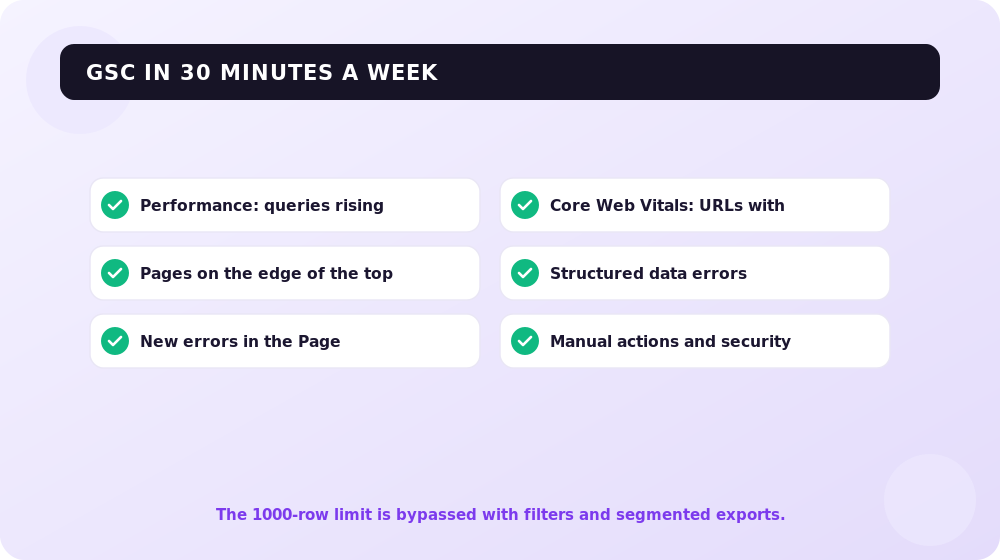
- Add a Domain property and verify via DNS; add URL-prefix properties for individual sections.
- Submit sitemap.xml in the Sitemaps section and make sure the status reads “Success”.
- Weekly — the Performance report: compare 28 days against the previous period, filter non-branded queries, look for declining pages.
- Weekly — Page indexing: the indexed-pages trend, new exclusion reasons, important pages among the excluded.
- After every release/publication — inspect the URL and request indexing for key pages; use the 24-hour view to monitor the first results.
- Annotate releases, content changes, and Core Update dates.
- Monthly — Core Web Vitals: any new “red” URL groups?
- Monthly — Manual actions and Security issues: should be empty. If not, it’s priority #1.
- Every six months — audit access under Settings → Users and permissions.
- For sites with 1,000+ pages — set up Bulk Export to BigQuery or API exports: the interface’s 1,000-row limit isn’t enough for analysis.
FAQ
What is Google Search Console in simple terms?
It’s a free dashboard from Google that shows how your site looks through the search engine’s eyes: which queries it is found for, which pages made it into the index, which errors hold back rankings. It’s the only official feedback channel between a site and Google — including penalty notifications.
How is Search Console different from Google Analytics?
Search Console shows data from before the visit: impressions in the results, positions, CTR, indexing. Google Analytics 4 shows behavior after the visit: pages, events, conversions. The systems complement each other, so it’s worth linking them in the GA4 settings.
Which property type should I choose — Domain or URL prefix?
Domain: it covers all subdomains and protocols at once and insures you against data loss after a move to HTTPS or a www change. It can only be verified via a DNS record. Use URL-prefix properties additionally — for example, to track a single section or a language version.
Why are pages “crawled — currently not indexed” and what should I do?
Google judged the content not valuable enough for the index. Requesting indexing again is pointless — you need to strengthen the page: unique content, an answer to a real query, internal links from authoritative pages of your site. For technical and duplicate pages this status is normal.
How do I export more than 1,000 rows from Search Console?
Via the Search Analytics API (up to 25,000 rows per request, more with pagination) or via Bulk Export to BigQuery, which exports all data daily with no limits. Set it up under Settings → Bulk data export. The console interface is always capped at 1,000 rows.
How quickly does data appear in Search Console reports?
The main performance reports update with a one-to-two-day delay. The 24-hour view shows near-fresh data with hourly granularity — handy for checking new publications. Indexing data updates in waves, usually several times a week, so the reaction to your fixes is not instant.

Merchant Center for AI Mode: Getting Your Product Feed Ready for Conversational Shopping in 2026
Google AI Mode is reshaping product search and a plain feed no longer cuts it. Here are the new Merchant Center attributes, why stores get banned, and where to start.
Read →
Image SEO Optimization: alt, Dimensions and Weight for Core Web Vitals
How to optimize images for SEO in 2026: why alt text matters, how width and height stop layout shifts (CLS), which formats (WebP, AVIF) to use, and how not to break LCP with lazy loading. A guide from SEOquick.
Read →
Search Everywhere Optimization: Ranking on TikTok, YouTube, Reddit and AI Search
Your customer does not only search on Google: 49% of consumers search on TikTok, Reddit pulls 842M organic clicks a month, and YouTube is the source of roughly one in four AI Overview citations. Here is how a business owner picks 2–3 platforms without burning the budget.
Read →Want to apply this to your site?
We will review the current situation, find the first growth levers, and suggest a practical working format.